Time:2025-09-02 Browse: 1
1.Basic Performance of Touch panel: Sensitivity 、Touch Points 、Finger pitch 、Report rate 、Boot Palm 、Palm Rejection 、Waterproof 、Glove 、Gesture 、Passive Stylus 、Active Stylus 、Linearity 、Accuracy.
Sensitivity refers to how easily a touch can be detected. When a touch occurs, it causes a change in the energy of the capacitive screen, and different touch areas result in different levels of energy change. High sensitivity means the system can detect a touch even when the energy change is very small.
Touch Points: The number of simultaneous touch points supported. Most devices support 10 touch points, while some larger-sized devices require support for 20 or 30 touch points.
Finger Pitch: Refers to the minimum distance between two fingers that can be independently recognized. It is typically 2.5 times the pitch (sensor pitch) of the capacitive grid.
Report Rate: The frequency at which touch data is reported. It usually refers to the report rate when swiping with a single finger (typically >80 Hz). When multiple fingers are used, the report rate may decrease.
Palm Press to Power On (Boot Palm): This typically refers to the scenario where the device powers on while a hand is pressing on the touch screen — that is, the screen is powered up while already being touched by a palm. Since different manufacturers provide varying levels of support for this functionality, some devices may fail to power on if a finger or palm is already touching the screen at startup.
Palm Rejection: Refers to the touch screen's ability to recognize and ignore unintended touches caused by the palm of the hand during normal operation, while still accurately detecting intentional inputs.
Waterproof: Waterproof generally refers to two scenarios:--- ① The touch screen functions normally when operated with wet fingers; ② Water droplets on the surface of the touch screen do not cause false touch reporting, and the screen returns to normal operation after the water is wiped away.
Gesture: Support for gestures includes two states---①Gesture wake-up: When the display is off and the touch screen is in low-power mode, a specific gesture can wake up the entire system, restoring normal display and operation; ②Gesture function: When the touch screen is in normal working state, performing a gesture triggers a command that instructs the device to perform a corresponding action.
Passive Stylus: A passive stylus is typically supported, with compatibility for a stylus tip diameter equal to 0.8 times the sensor pitch.
Active Stylus: Currently, active stylus adoption in the capacitive touch screen market is limited, as it requires communication between the touch IC and the stylus.
Linearity: Linearity is tested on the online testing machine, where the software identifies and evaluates the linearity performance.
Accuracy: Tested on the same online testing machine, where the software detects and evaluates touch accuracy.
Note: Many factors can affect linearity and accuracy, ranging from the touch panel's (TP) sensor pitch and manufacturing process to full device assembly and environmental interference, all of which may cause deviations. Although the above are considered fundamental touch panel specifications, not all functions are required in every actual project. TP designs are tailored according to specific application needs, leading to significant differences in design approaches.
2. Debugging Process---During the TP stage, only channel configuration and sensitivity settings are required to ensure basic functionality. This is because actual performance may vary when the TP is integrated into the final device. The final performance is evaluated based on the software used in full-system testing, and all functions of the solution are ultimately verified on the complete device.
3. Production Line Testing---After the prototype has passed testing, its data can be used to set up production line testing. There are also specific requirements for prototype parameters. If the production test criteria are set too strictly, it may lead to excessive functional rejection, increasing the defect rate and reducing yield. Conversely, if the criteria are too lenient, it may result in wasted labor resources during production, such as rework. The parameter values used in production testing are typically derived from accumulated experience across numerous projects. IC manufacturers often provide general-purpose production test settings that are suitable for basic projects, while special or high-demand projects require stricter control and customized parameters.
4.Performance Testing of Capacitive Touch Screens
--- Line Sensitivity Test Method and Procedure
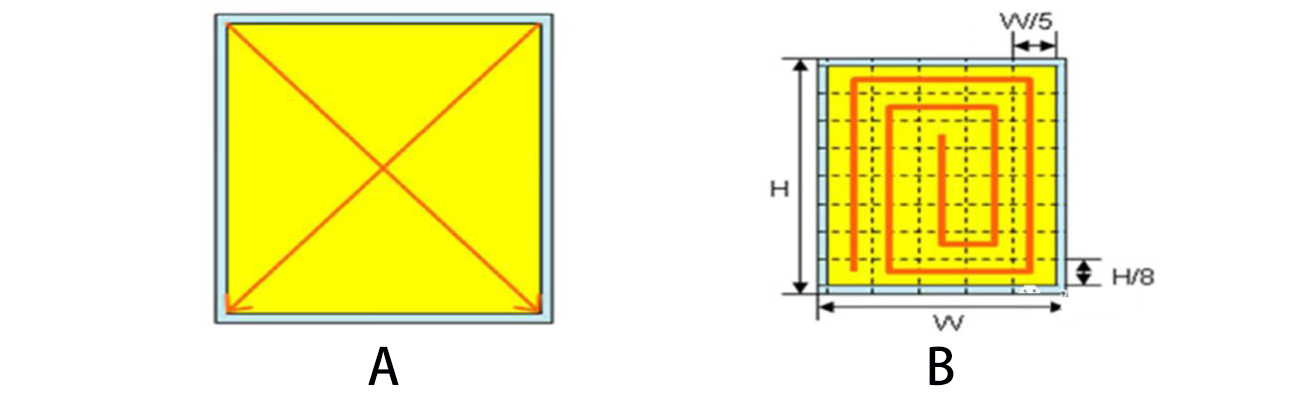
① Use copper rods with a diameter of 3–10 mm to draw lines along the two diagonal corners of the screen (refer to Figure A), and record the touch reporting data from the touchscreen.
② Determine the preliminary sensitivity value A by identifying the smallest diameter copper rod for which the touch reporting data remains stable, based on the proportional relationship of the reported touch points.
③ Use the copper rod with the preliminary sensitivity diameter to draw the pattern shown in Figure B on the touch screen.
④ If the lines drawn are 100% continuous, the result is confirmed as OK; otherwise, increase the copper rod diameter by one size and retest. Continue this process until all lines drawn are completely continuous—this final diameter corresponds to sensitivity B.
Sensitivity Judgment Criteria:
B ≤ 4mm (Excellent) / B ≤ 5mm (Good) / B ≤ 6mm (Qualified)
B-A =0mm(Excellent)/B-A≤1mm(Good)/B-A≤2mm(Qualified)
--- Tap Sensitivity Test Method and Procedure
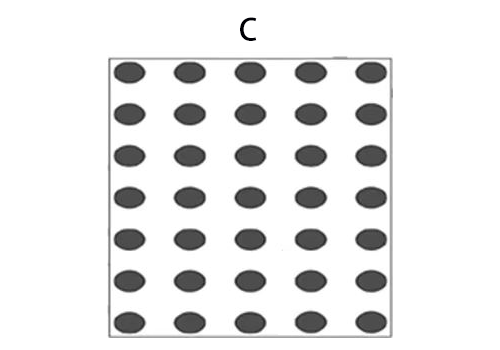 ① Select the copper rod diameter obtained from the line sensitivity test, and tap 20 times at each of the 35 positions arranged in a 7×5 matrix along the length and width directions of the touch screen (as shown in Figure C).
② Check whether there are any missed touches at each position. If no misses occur, the button sensitivity is defined as the diameter C of the copper rod used.
③ If there are any missed touches, increase the copper rod diameter by 1 mm.
④ Using the increased copper rod diameter, repeat the testing process described in step ① until a new sensitivity value is obtained.
C≤5mm(Excellent)/C≤6mm(Good)/C≤7mm(Qualified)
--- Point Accuracy Test (Accuracy)
① Test Purpose:Accuracy is used to analyze whether the coordinates output by the touch screen at various locations are consistent with their actual physical positions, reflecting the precision of the touch screen during touch input. This metric is directly related to touch accuracy, ensuring that taps are registered correctly.
② Test Requirements and Precautions:Testing should be conducted for both hovering and non-hovering (direct touch) scenarios to compare the differences between the two, with better performance indicated by closer results between the two conditions. For each test, the maximum deviation obtained must not exceed twice the average deviation. Evaluation should be performed separately for the central area and the edge areas of the screen, where the edge region is defined as a 2mm-wide border around the screen perimeter. Adjustments to this accuracy metric may affect the sensitivity performance.
③Test Method and Procedure
● Use a copper rod with the diameter corresponding to the button sensitivity for testing. Press each of the 9×7 grid points (arranged along the length and width of the screen) 20 times.
● Increase the copper rod diameter by 1 mm from the sensitivity-based value, then perform the test and analysis using the same method.
● For each position, determine the maximum deviation among the 20 output coordinates from the actual physical coordinate, and use this value as the accuracy deviation for that single point.
● Sum the maximum deviations of all position points and then divide by the number of points (average weighting) to obtain the overall screen accuracy deviation.
Judgment Criteria:
Central Area --- ≤ ±0.3 mm (Excellent) / ≤ ±0.6 mm (Good) / ≤ ±1.0 mm (Qualified)
Edge Area --- ≤ ±0.5 mm (Excellent) / ≤ ±1.0 mm (Good) / ≤ ±1.5 mm (Qualified)
---Linearity Test
① Test Purpose: To evaluate whether the line drawn on the touch screen matches the actual movement path, reflecting the linearity performance across different regions and directions of the screen.
② Test Requirements and Precautions :Testing should be conducted for both hovering and direct touch (non-hovering) scenarios to compare the differences between the two, with better performance indicated by closer results between the two conditions. For each test, the maximum deviation must not exceed twice the average deviation. Evaluation should be performed separately for the central area and the edge areas of the screen, where the edge region is defined as a 2 mm-wide border along the screen perimeter. In addition to linearity, the hysteresis (lag) of the drawn line should also be tested. If the hysteresis value is too large, the touch response feels sluggish; if too small, it may lead to false touch detection due to signal jitter. Adjustments to this parameter may affect sensitivity, which in turn can influence a series of related performance metrics.
③Test Method and Procedure
 ● Use a copper rod with the diameter corresponding to the button sensitivity to perform the linearity test on the touch screen.
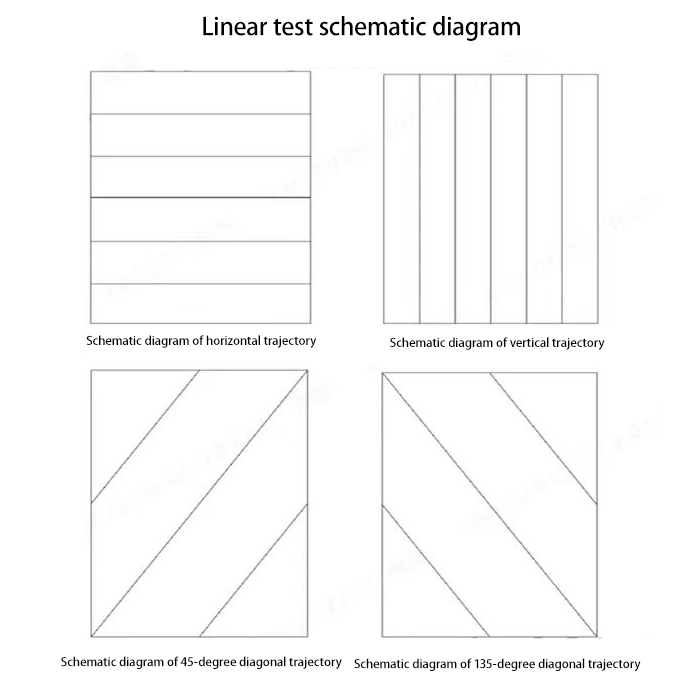
● The standard trajectories for linearity testing include horizontal, vertical, and 45°/135° diagonal paths; their specific patterns and quantities are shown in the figure on the right.
● Use a robotic arm to test the above trajectory lines at speeds of 20 mm/s and 5 mm/s, respectively, and record the resulting data.
● Calculate the distance deviation between each reported touch coordinate and the corresponding physical line. Finally, compute the weighted average of all deviations to obtain the linearity error.
Judgment Criteria for the Above Four Points:
Central Area---≤±0.3mm(Excellent)/≤±0.6mm(good)/≤±1.0mm(Qualified)
Edge Area---≤±05mm(Excellent)/≤±1.0mm(good)/≤±1.5mm(Qualified)
● Select a point in the non-edge area of the screen, move uniformly in the forward direction at 5 mm/s for 2 cm, pause for 1 second, then move back in the reverse direction at the same speed. Record the distance at which the reverse movement is first detected.
● Repeat the above test at 10 different points selected in the non-edge area of the screen. Compare the 10 test results; the smallest recorded value is taken as the hysteresis magnitude of the screen's coordinates.
Judgment Criteria for the Above Two Points: Hysteresis Magnitude — Within 1 mm